
Running a blog is one of the best ways to grow your website, attract visitors, and share valuable information with your audience. If you are using Hostinger Website Builder, managing your blog settings is quite simple once you understand where everything is located and how each option works.
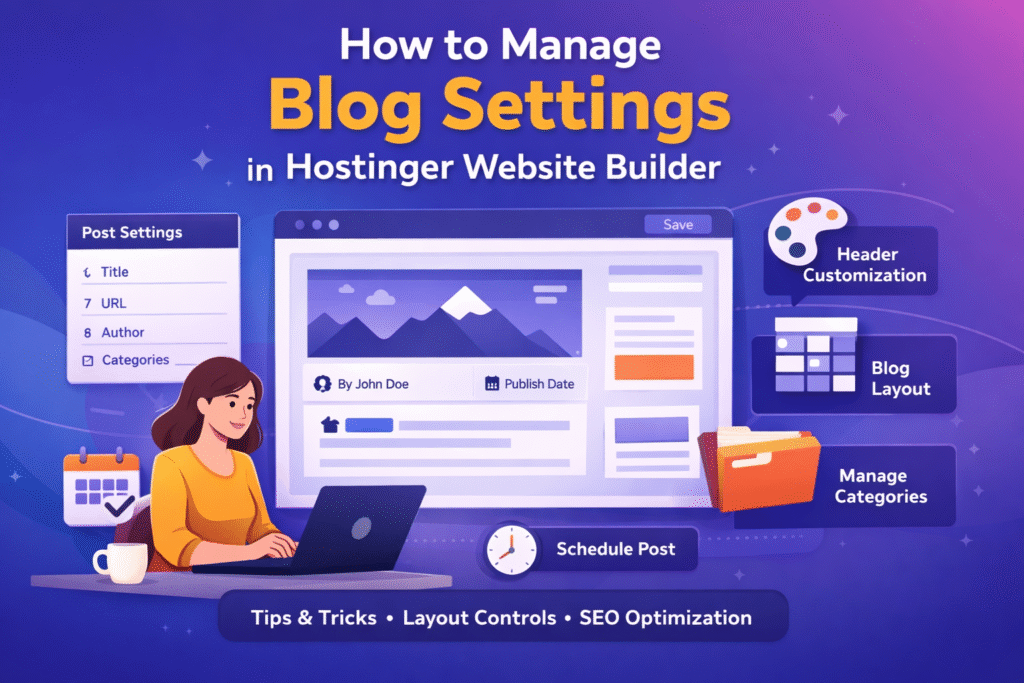
In this guide, you will learn how to manage blog settings in Hostinger Website Builder, including blog post settings, header customization, and blog section controls. By the end, you will know exactly how to organise your blog, improve its appearance, and make it more engaging for your readers.
Understanding the Blog System in Hostinger Website Builder
When you create a blog in Hostinger Website Builder, your content is organised into posts, categories, and sections. Each of these elements has its own settings that allow you to customise how your blog looks and how your posts appear on your website.
The blog management area allows you to:
- Create and edit blog posts
- Control post details such as title, description, and URL
- Add featured images
- Organise posts using categories
- Customise the design of your blog pages
- Control how posts are displayed in blog sections
These options help you build a well-structured and professional blog without needing any coding knowledge.
Blog Post Settings
The Blog Post Settings allow you to control the main details of every blog article you publish. This is where you manage the information that readers and search engines see when they visit your blog.
How to Access Blog Post Settings
To edit a blog post:
- Open the Hostinger Website Builder dashboard.
- Look at the left-side panel.
- Expand the Blog Management section.
- Click on any blog post you want to edit.
- In the top toolbar, select Post Settings.
Once you open the settings panel, you will see three important tabs.
1. General Settings
The General tab contains the most important details of your blog post. These settings help define the identity of your article and improve its SEO performance.
Here you can edit:
Title
The title is the main heading of your blog post. It should be clear, engaging, and relevant to the topic you are writing about.
A strong title helps:
- Attract more readers
- Improve search engine visibility
- Encourage users to click on your article
Description
The description gives a short summary of your blog post. This text often appears in search results, so it should briefly explain what the article is about.
A good description should:
- Be concise
- Contain important keywords
- Encourage readers to click and read more
URL
The URL is the web address of your blog post. A clean and simple URL helps search engines understand your content and improves user experience.
For example:
Good URL:
yourwebsite.com/blog/hostinger-blog-settings
Poor URL:
yourwebsite.com/blog/post12345
Author
If your website has multiple writers, you can assign a specific author name to the post. This helps build credibility and lets readers know who wrote the content.
Publication Date
The publication date shows when the article was published. This helps readers understand whether the information is recent or outdated.
Scheduling Posts
Hostinger also allows you to schedule blog posts. Instead of publishing immediately, you can choose a specific date and time for the post to go live.
This feature is useful for:
- Content planning
- Maintaining a consistent posting schedule
- Preparing posts in advance
2. Featured Image
The Featured Image is the main visual displayed with your blog post. It often appears:
- At the top of the article
- In blog lists
- In social media previews
Choosing a strong featured image can significantly improve your blog’s visual appeal.
Tips for selecting a good featured image:
- Use high-quality images
- Make sure the image matches your topic
- Avoid blurry or low-resolution pictures
- Keep the design simple and professional
A visually appealing image can encourage more users to click and read your content.
3. Categories
Categories help organise your blog content into different topics.
For example, a website about digital marketing might use categories like:
- SEO
- Social Media
- Website Design
- Blogging
Assigning categories helps visitors easily find related content on your website.
It also helps search engines better understand your blog structure.
You can assign one or multiple categories to a blog post depending on the topic.
Blog Post Header Settings
The Blog Post Header is the section that appears at the top of your article. It usually includes the title, description, author, and other information about the post.
Customising this area can improve both the design and readability of your blog.
To access header settings:
- Click on the blog post header section.
- Select Edit Blog Header.
You will see three main tabs.
1. Style Settings
The Style tab allows you to control the appearance of your blog post header.
Here you can adjust:
Text Colours
You can choose between dark or light text colours depending on the background of your header.
This ensures that your title and description remain easy to read.
Text Size
Changing the text size can help make your blog titles more noticeable.
Large titles improve readability and make the page more visually appealing.
2. Layout Settings
The Layout tab allows you to control how elements appear within the header.
Options include:
Visibility Settings
You can choose whether to show or hide:
- Description
- Category
- Author
- Publication date
- Reading time
This gives you full control over how much information is displayed to readers.
Alignment
You can change how the header content is aligned on the page.
For example:
- Left aligned
- Centre aligned
- Right aligned
Padding
Padding controls the spacing above and below the header. Increasing padding creates a more spacious and modern design.
3. Background Settings
The Background tab allows you to customise the header background.
You can choose:
- A solid colour
- A background image
Background images can add a strong visual element to your blog post, but they should not make the text difficult to read.
Managing Blog Sections
A Blog Section is the area where multiple blog posts are displayed on your website.
For example, your homepage might include a section called:
“Latest Blog Posts”
This section automatically displays several recent articles.
To edit blog section settings:
- Click on the blog section in your page.
- Open the settings panel.
- Select Edit Blog List.
Layout Settings
Layout settings control how blog posts appear in the section.
Posts Per Page
This option allows you to decide how many posts appear in a section.
For example:
- 3 posts for a simple layout
- 6 posts for a full blog grid
Columns
Columns determine how many blog posts appear in each row.
Examples:
- 1 column for a large featured layout
- 2 columns for medium layouts
- 3 columns for grid-style blog displays
Column Gap
This setting controls the space between blog posts.
Adjusting the gap can make your design look cleaner and more organised.
Section Padding
Padding controls the space above and below the blog section.
Adding extra padding can make the page layout feel less crowded.
Style Settings
The style settings control the appearance of text within the blog list.
You can change:
- Title colour
- Description colour
Just like in the header settings, you can choose dark or light text styles.
Visibility Controls
Visibility settings allow you to choose which elements appear for each blog post in the section.
You can show or hide:
- Featured image
- Title
- Description
- Category
- Author
- Publication date
- Reading time
This allows you to create a minimal blog layout or a detailed blog preview, depending on your preference.
Filtering Posts by Category
Another useful feature is the option to display posts by category.
This means different sections of your website can show different types of content.
For example:
Homepage section → Latest posts
SEO page section → Only SEO articles
Tutorial page section → Only tutorial posts
This helps organise your website and improve user experience.
Customising Blog Section Backgrounds
Just like the blog header, blog sections also allow background customisation.
You can add:
- A background colour
- A background image
This can help highlight important blog sections or create a unique design style across your website.
Tips for Creating a High-Quality Blog
Managing blog settings is important, but creating valuable content is even more essential.
Here are a few tips to improve your blog:
Write Clear and Helpful Content
Focus on solving your readers’ problems and answering their questions.
Use Attractive Images
Visual content improves engagement and keeps readers interested.
Maintain a Consistent Publishing Schedule
Posting regularly helps build trust and grow your audience.
Organise Content with Categories
A well-structured blog is easier to navigate.
Optimise for SEO
Use keywords naturally in your titles, descriptions, and content.
Final Thoughts
The Hostinger Website Builder provides a simple yet powerful blogging system that allows users to manage their blog without technical knowledge.
By understanding blog post settings, header customisation, and blog section controls, you can build a professional, well-organised, and visually appealing blog.
Take time to experiment with different layouts, customise your headers, and organise your posts using categories. With the right settings and high-quality content, your blog can become a valuable resource for your audience and an effective tool for growing your website.